Editing Customers
You can edit the configuration of an existing customer.
| ➢ | To edit a customer: |
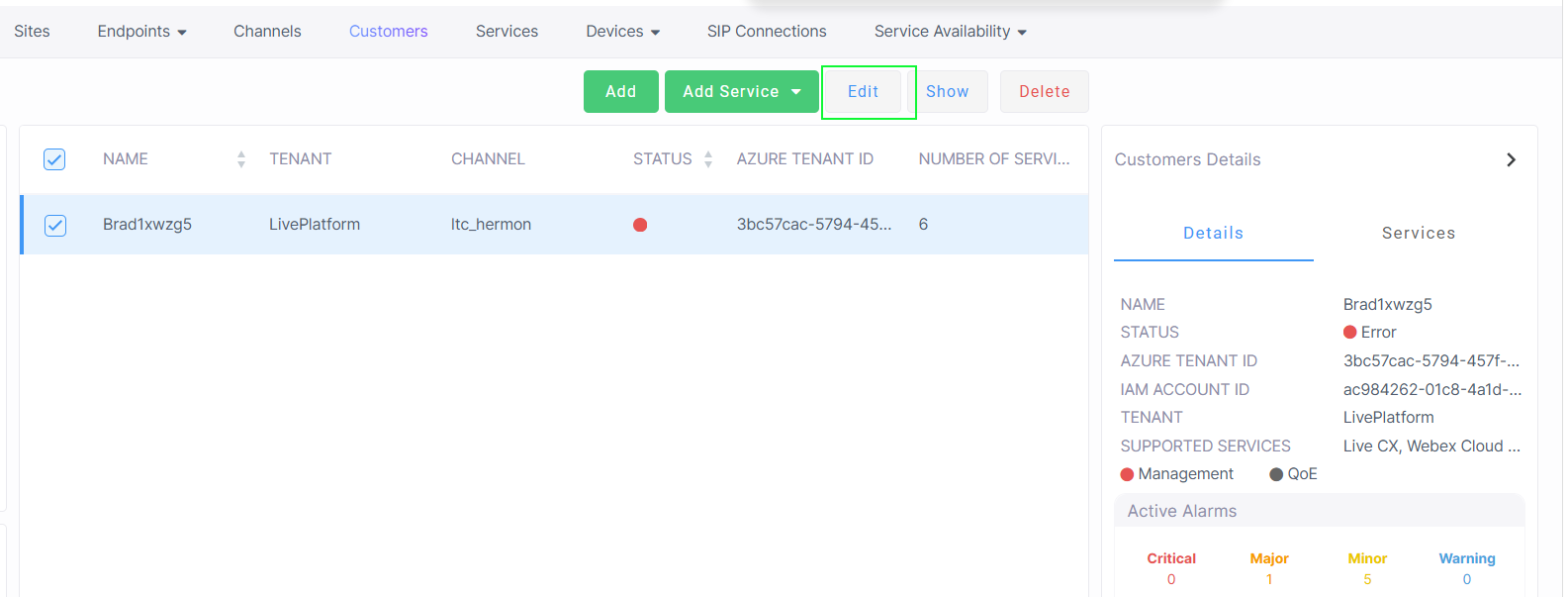
| 1. | In the Menu bar, choose Topology, and then select the Customers tab. |
| 2. | Select the check box adjacent to the customer that you wish to edit, and then click Edit. |
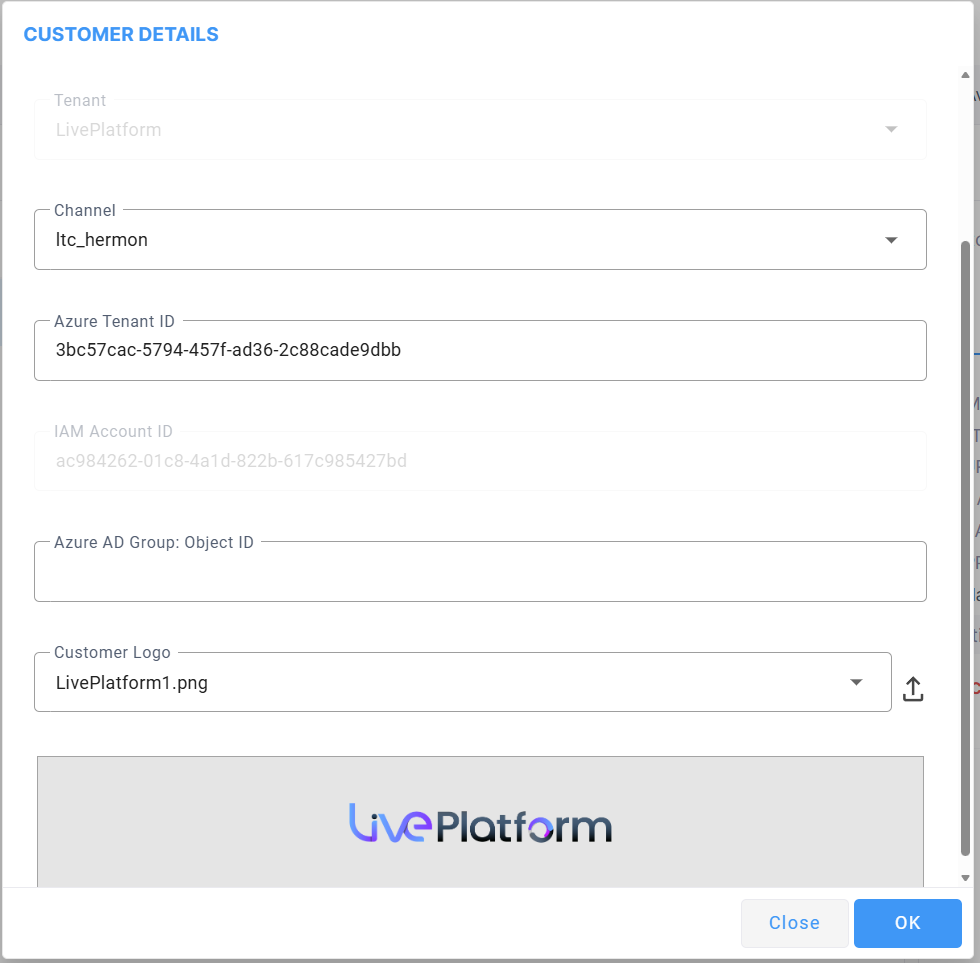
| 3. | Configure parameters according to the table below and then click OK. |
|
Parameter |
Description |
|||||||||||||||
|---|---|---|---|---|---|---|---|---|---|---|---|---|---|---|---|---|
|
General |
||||||||||||||||
|
Customer Name |
The name of the customer tenant. |
|||||||||||||||
|
Description |
Brief description of the customer tenant. |
|||||||||||||||
|
Tenant |
The name of the Service Provider tenant to which the customer is attached. |
|||||||||||||||
|
Channel |
The name of the channel to which the customer is attached. |
|||||||||||||||
| Azure Tenant ID |
The registered customer Azure tenant ID. |
|||||||||||||||
|
IAM Account ID (Read-only) |
ID string of the Identity and Access Management account of the channel entity that is generated automatically upon creation of the entity (for version 8.4.2000 and later). See Configuring Identity and Access Management (IAM) andLogging in with Identity and Access Management (IAM). |
|||||||||||||||
|
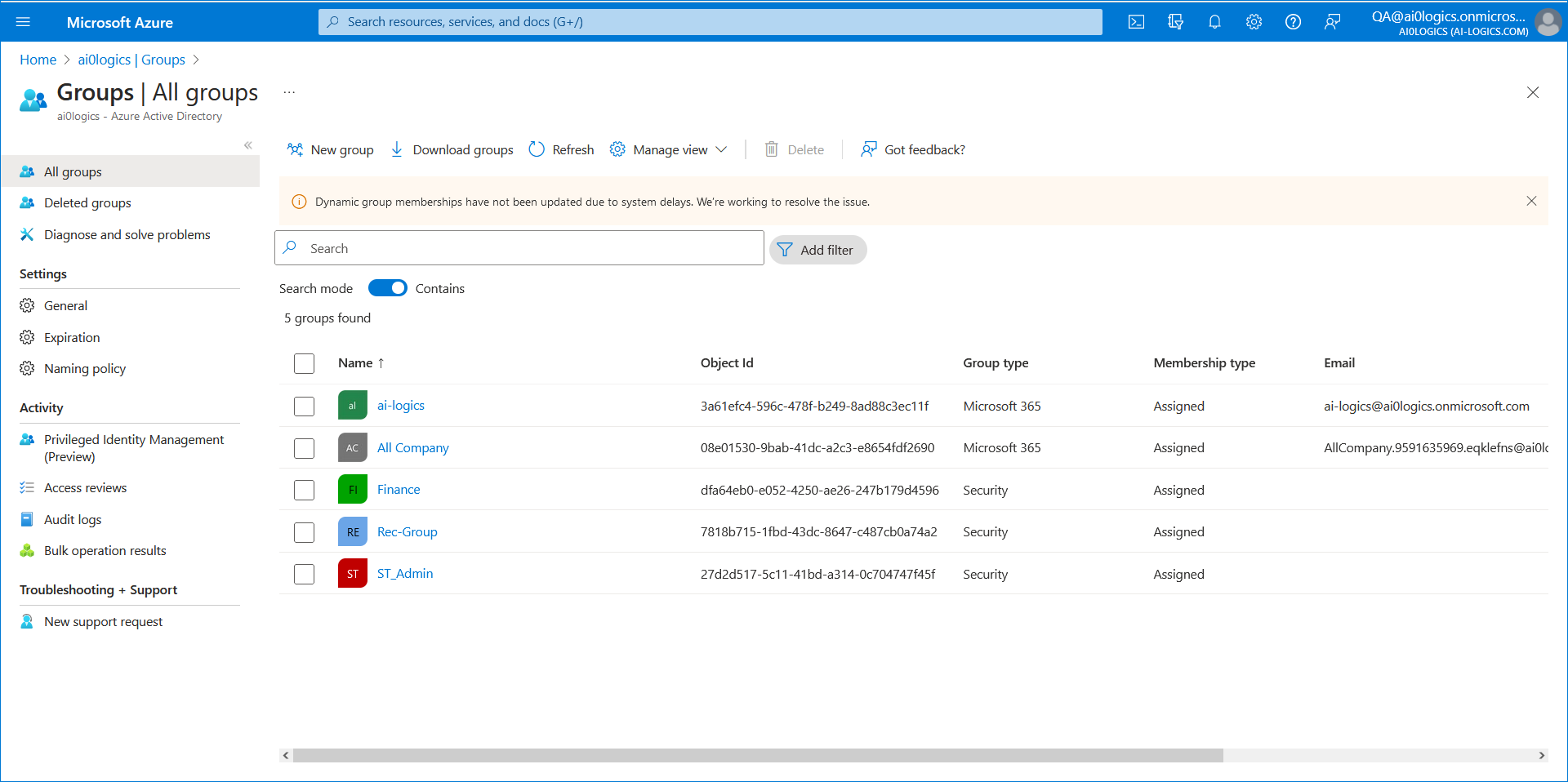
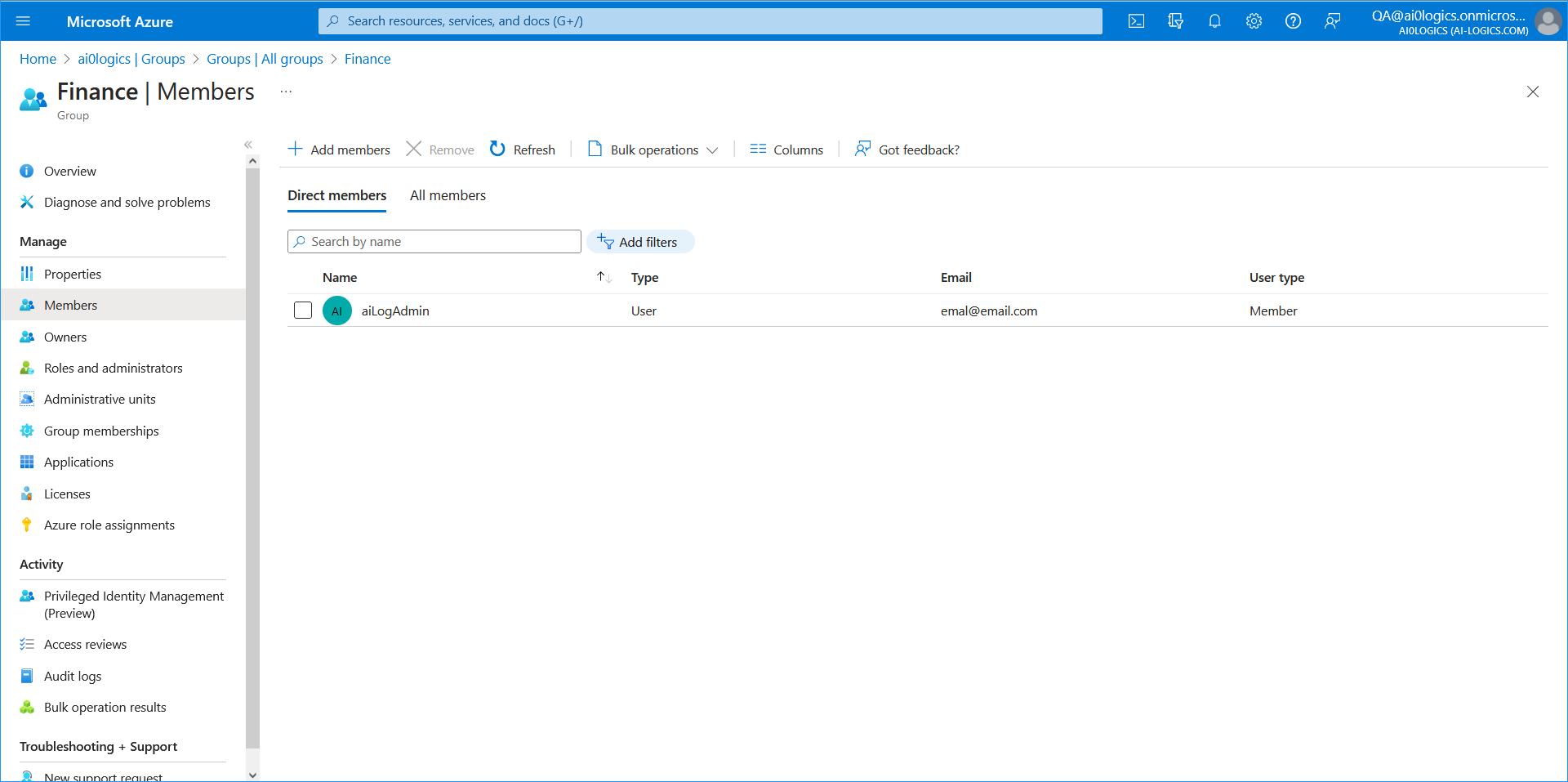
Azure AD Group: Object ID |
Customer operators can be assigned to a specific Azure AD Group whose members they are designated to manage. For example, in the Finance Group (see below), the operator "aiLogAdmin" manages only employees in the Finance department. Therefore, when logged in to Live Platform portal, this operator can only view and manage the Finance group employees. The same logic applies for other manages groups for the same tenant. This enables affiliated subsidiary corporations to be managed at the AD Group level under the umbrella of their Parent corporate group managed at the Tenant ID level.
|
|||||||||||||||
|
Customer Logo |
Click the upload button to upload a customer logo or select it from the drop-down list. The uploaded logo is displayed below the drop-down. |
|||||||||||||||
|
Services |
||||||||||||||||
|
Live Setup ID |
Update the Live Setup ID as required for each service, contact for details. |
|||||||||||||||
|
Contact Information |
||||||||||||||||
|
|
Update the following contact information as required:
|
|||||||||||||||